
Workout splits
Updated onNovember 28, 2026
In Running and Walking workouts, you can see splits based on GPS distance. Aidlab automatically completes a split every 1 km, or every 1 mile with imperial units.
Enable splits before starting
Before you tap Start:
- Open the Activities tab and choose Running or Walking.
- Tap Customize below the workout components.
- Select Splits. You can move the component in the list.
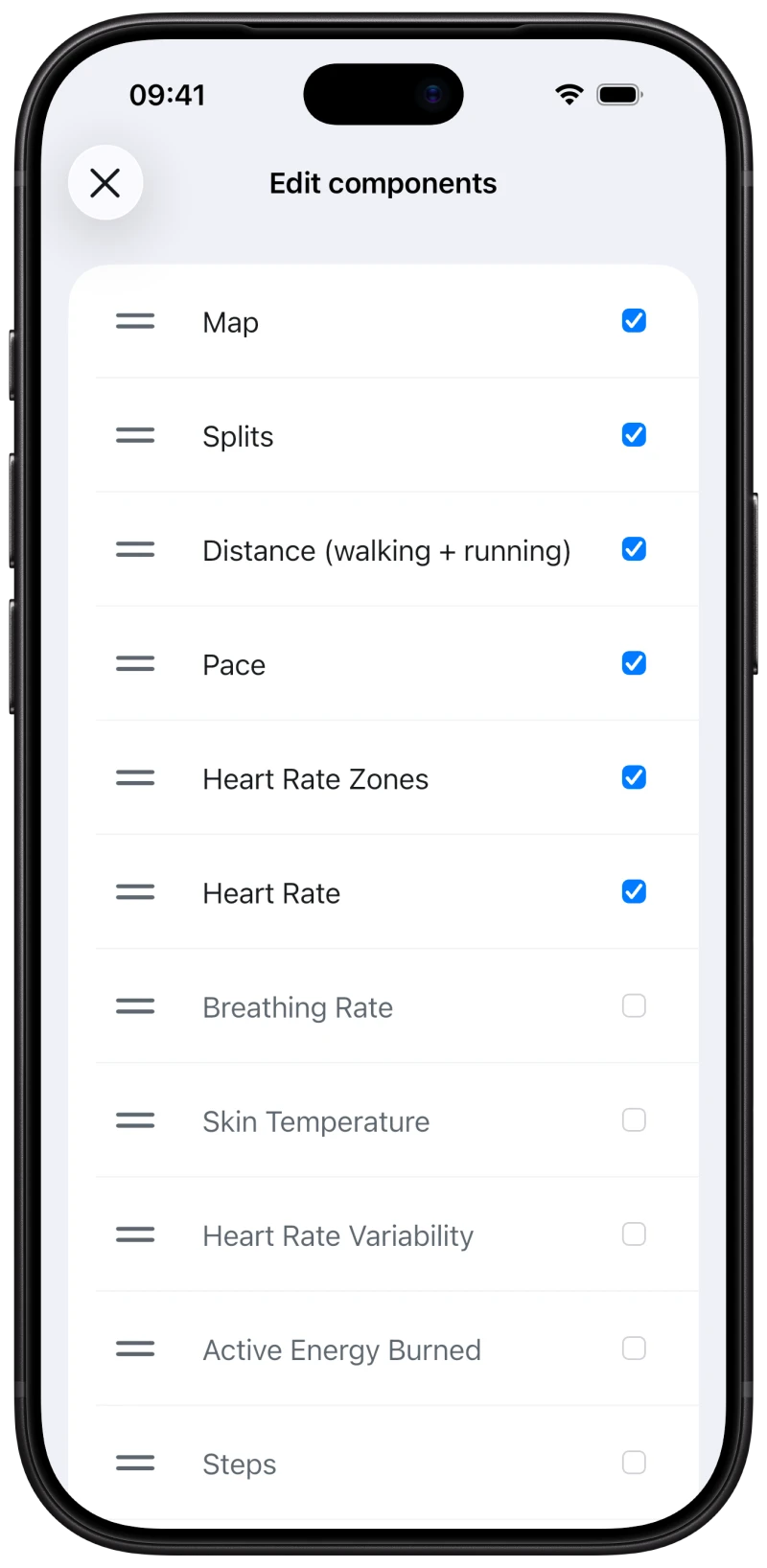
Aidlab saves your choice separately for running and walking.
During your workout
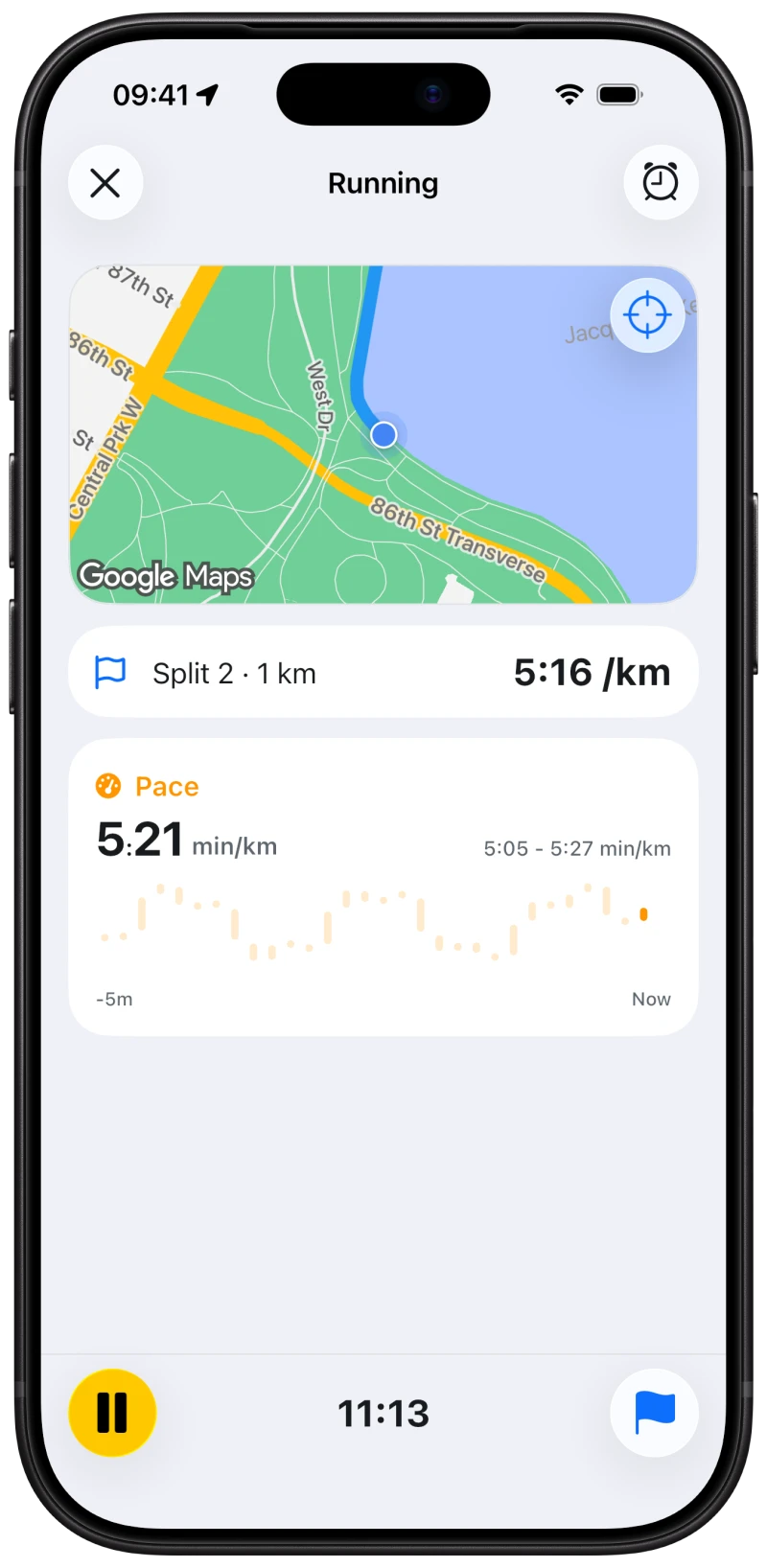
The Splits card shows the number and pace of your last completed split, such as “Split 2 · 1 km” and “5:16 /km”. Your first result appears after the first kilometre or mile.
After your workout
Open your saved workout to see the Splits table with each split's number, distance, time and pace. The table appears after your first full kilometre or mile and includes the final, shorter split. The example below shows three full kilometres and a final 0.43 km at 5:16 /km.
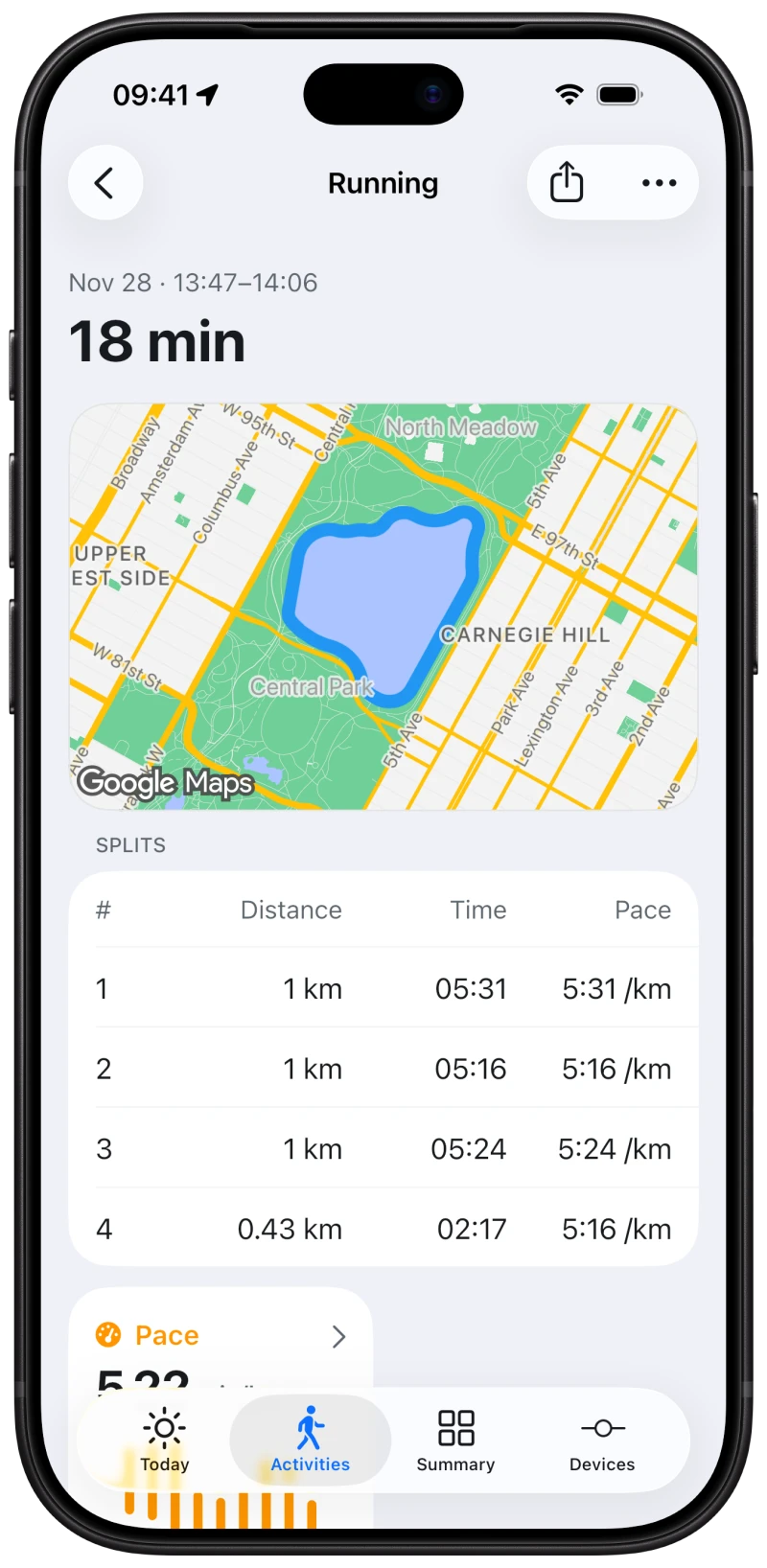
You can also see splits calculated from saved GPS routes in earlier runs and walks. Change the app's units to view the table in miles or kilometres.
Pauses, GPS and laps
When you resume your workout, you continue the same split, with its time and pace based on active workout time. With a weak GPS signal, you'll see the completed split a little later.
To record Laps, tap the flag button at any point during your workout. Your saved workout shows the time for each lap.
See also: Tracking fitness activities and Tracking steps, distance, and floors.