


Pulseoximeter troubleshooting
Updated onSeptember 13, 2026
If you cannot connect Pulseoximeter or see its readings, find the matching problem below.
Pulseoximeter does not appear in the list
- Check that the device is switched on and charged. Move it close to your phone.
- Check Bluetooth and Aidlab’s permissions. On iPhone, open Settings → Privacy & Security → Bluetooth. On Android, check the app’s permissions, including Nearby devices access if required.
- If the device is connected to another app or phone, disconnect it there.
- In Aidlab, open Devices → + and keep the scanning screen open.
This guide covers Pulseoximeter offered by Aidlab. Other Bluetooth models may not work with the app.
Several devices appear
Leave only the Pulseoximeter you want to connect switched on, then reopen the scanning screen. The string below the name identifies the device; you do not need to enter it anywhere.
The device is listed, but no readings appear
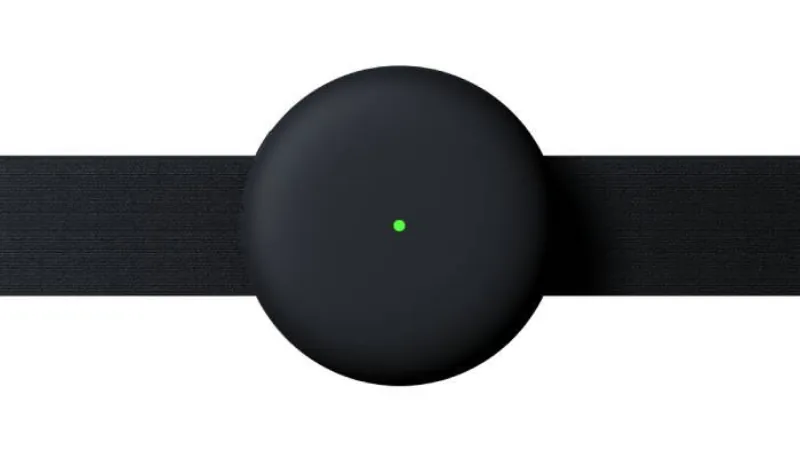
Check for a green dot next to Pulseoximeter in Devices. If it is missing, switch on the device and move it close to your phone. Also check that automatic connection is enabled in its settings in Aidlab.
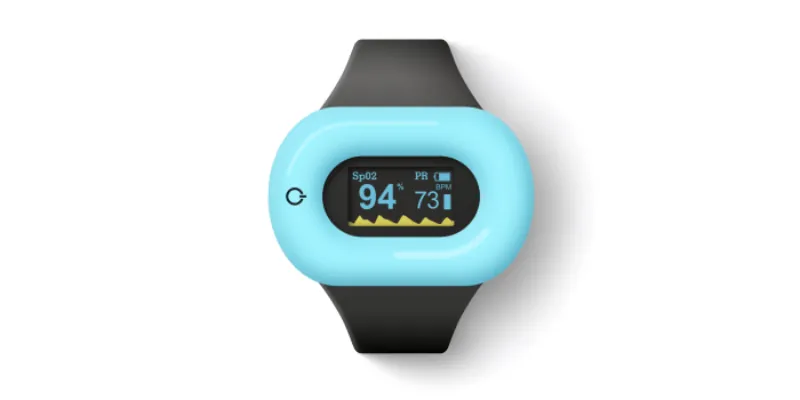
If the dot is green, check whether Pulseoximeter itself shows values. Adjust your finger position and wait for a stable reading. See taking a measurement for more tips.
Still need help?
Contact us with your phone model and app version. Attach a screenshot from Aidlab and tell us whether Pulseoximeter shows values on its own display.